
Resident control · Ignore Duty Hours at Home
When home is inside the WorkZone™
Some residents live close enough to the hospital that hours record while they’re at home. Ignore Duty Hours at Home carves your address out of a WorkZone™ you still train in — so hours stop recording at home and keep recording at work.
Resident User Guide
Our Privacy Promise
Available on iPhone and Android. Takes about two minutes to set up.
Why it happens
Nothing has gone wrong
Residency housing tends to be close to the hospital. Usually that’s a gift — a shorter walk at 5:40 in the morning, a real dinner between shifts. Occasionally it produces an odd side effect: you open the ResQ app on a Saturday, see hours recorded, and know for a fact you never left the apartment.
A WorkZone™ is a virtual boundary drawn around a clinical site, and boundaries are drawn generously enough to catch the whole campus — parking structures, connected buildings, the far end of a block. If home sits inside one of those boundaries, ResQ does exactly what it was built to do: it records arrival.
That’s the right behavior in the wrong place. There are two ways to fix it, and which one you want depends on a single question.
Choose the right one
Do you train at that site?
Both fixes stop hours recording at home. They are not interchangeable — picking the wrong one either loses real hours or doesn’t solve the problem.
No — I never train there
A WorkZone™ exists for a site near your home, but you have never worked there and never will. You don’t need that boundary at all.
Use Toggle WorkZones™. Switch that individual WorkZone™ off completely. It stays off until you turn it back on.
Yes — I do train there
You’re on shift at that site regularly. Switching the WorkZone™ off would mean losing real clinical hours, so that isn’t an option.
Use Ignore Duty Hours at Home. It excludes your address only. The WorkZone™ keeps recording everywhere else inside it.
Setup
Turning on Ignore Duty Hours at Home
Two minutes, once. Your home address is added in the web portal; the setting itself is switched on in the app.
Sign in to your portal
Your institution ID followed by .resqmedical.com — for example, lomalinda.resqmedical.com.
Open your profile
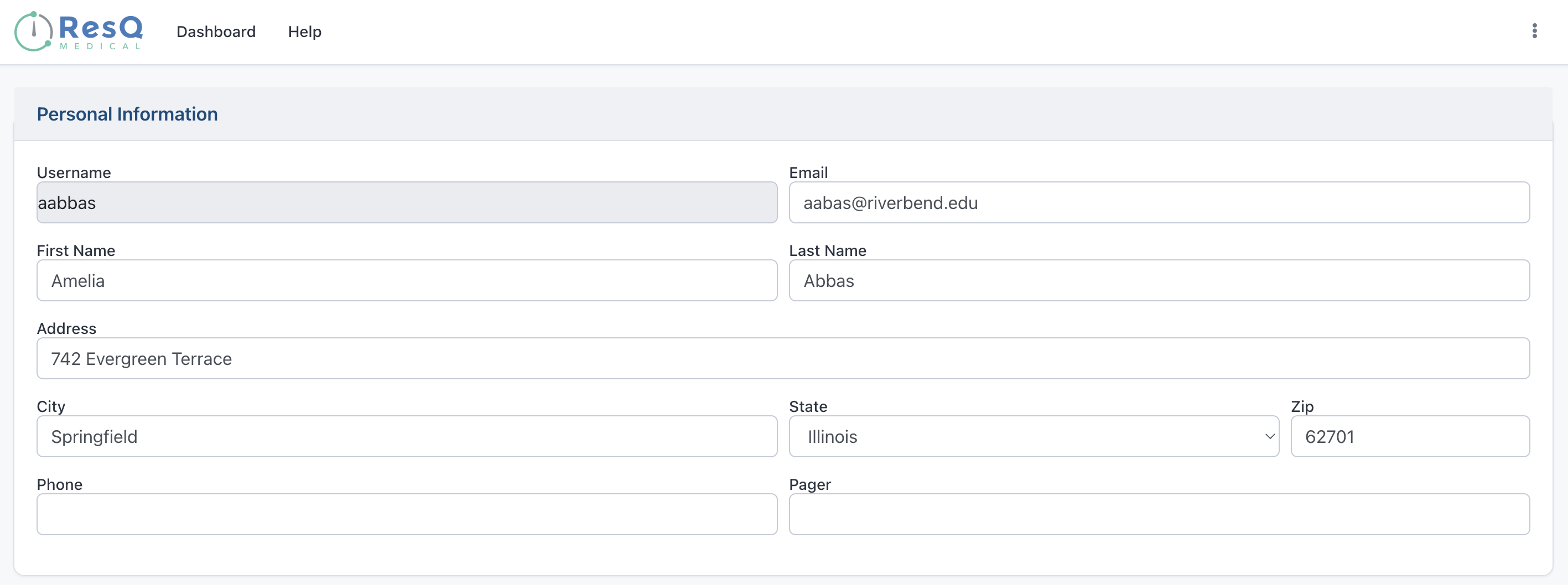
Click the three-dot menu in the top-right corner and choose Profile.
Add your address
Fill in Address, City, State and Zip, then Save.
Toggle it on in the app
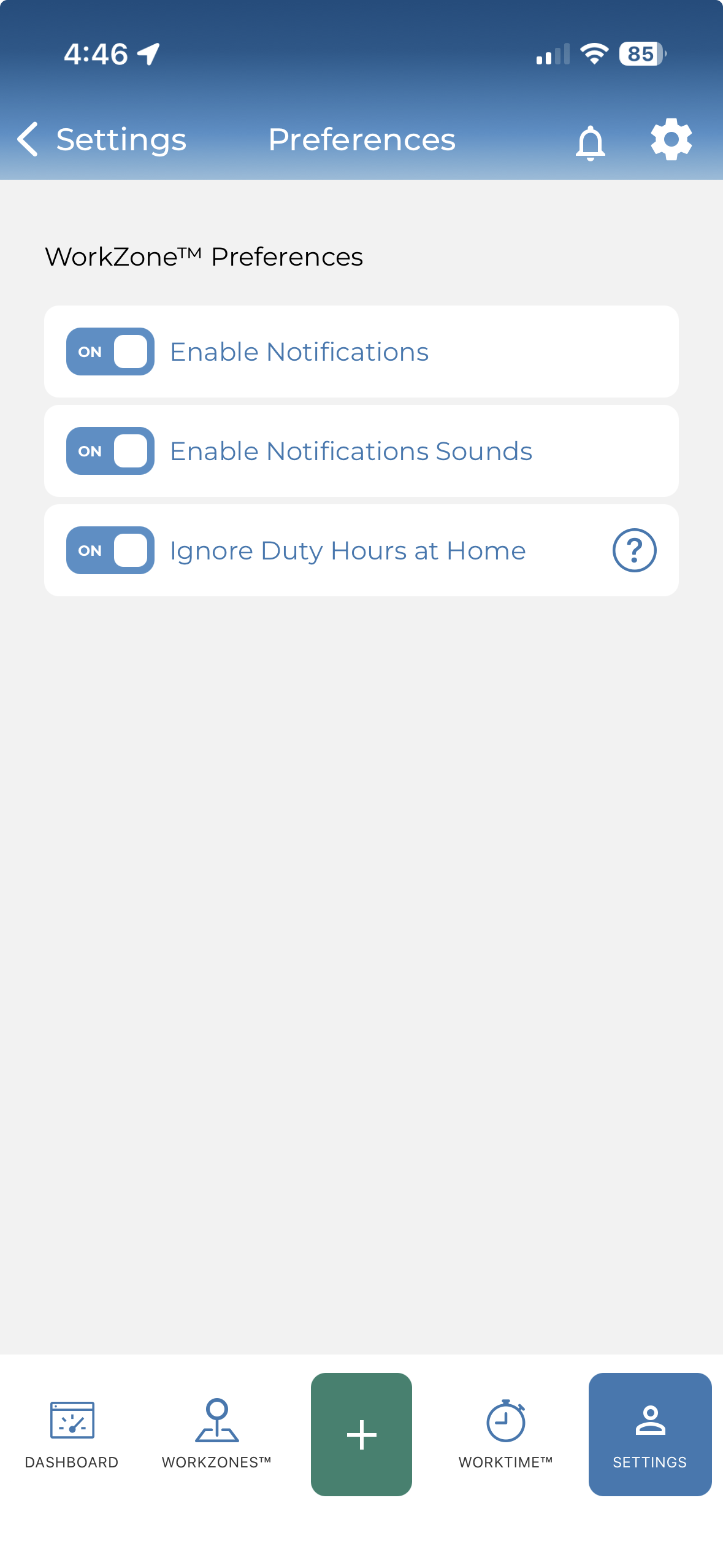
Go to Settings → Preferences. Under WorkZone™ Preferences, switch Ignore Duty Hours at Home to ON.
That’s it. Hours stop recording at home from then on — on iPhone and on Android.
The full picture
Three levels of control, not one switch
Residents decide what gets recorded. These three settings work at different scales, and they can be used together.
AwayMode™
Temporary. One tap stops recording — for an afternoon off in the hospital café, or a day you’re on site but not on duty. Turn it off and recording resumes.
Ignore Duty Hours at Home
Standing, one place. Your address is permanently excluded from inside a WorkZone™ you still depend on. No daily input from you.
Toggle WorkZones™
Whole site. An entire boundary switched off, for a location you never train at. Nothing at that site records until you switch it back on.
Common questions
Before you turn it on
What if I really do work from home?
Charting, reading, taking call from your apartment — that’s real work and it belongs in your record. This setting only stops ResQ recording automatically at your address. You can still add those hours yourself: on the WorkTime™ screen, add a shift and choose Work From Home. That is simply a label for hours you enter by hand — it does not create a boundary around your home, and nothing is recorded there.
Does it change anything for my program?
No. This is a personal setting on your own profile. It changes nothing for anyone else in your program, and it doesn’t alter the WorkZone™ itself — the boundary keeps working exactly as it did for everyone training there.
What if I move?
Update it yourself in your institution’s web portal. The exclusion applies to whichever address is on your profile at the time — it won’t follow you on its own, so change it there when you move.
Can I turn it back off?
Yes. It’s a toggle in Settings → Preferences — switch it off and it stops excluding your address. You’re never locked into it.
Your address
Why we ask for it
Worth naming the obvious question: yes, turning this on means giving ResQ a home address. You’re giving it so the app records less, not more — it needs to know which place to leave alone.
The address lives in your own profile. You can change it or remove it whenever you like, and removing it simply turns the exclusion off. ResQ records where residents work in order to protect their hours.
Also worth knowing
Other ways residents control what’s recorded
AwayMode™ →
Stop recording temporarily, without changing any of your settings.
Resident User Guide →
Every setting in the app, start to finish.
Privacy Promise →
What ResQ records, what it doesn’t, and who can see it.
Why it matters
Hours recorded at home are hours that never happened
They inflate a weekly average, push a resident toward a limit they aren’t near, and put noise into the record a program relies on. A resident who turns this on isn’t opting out of compliance — they’re making the data true.