
Signing in to ResQ
ResQ no longer uses passwords. You sign in with your institution, your email address, and a six‑digit code we send you — there is nothing to remember and nothing to reset.
Sign in with a login code
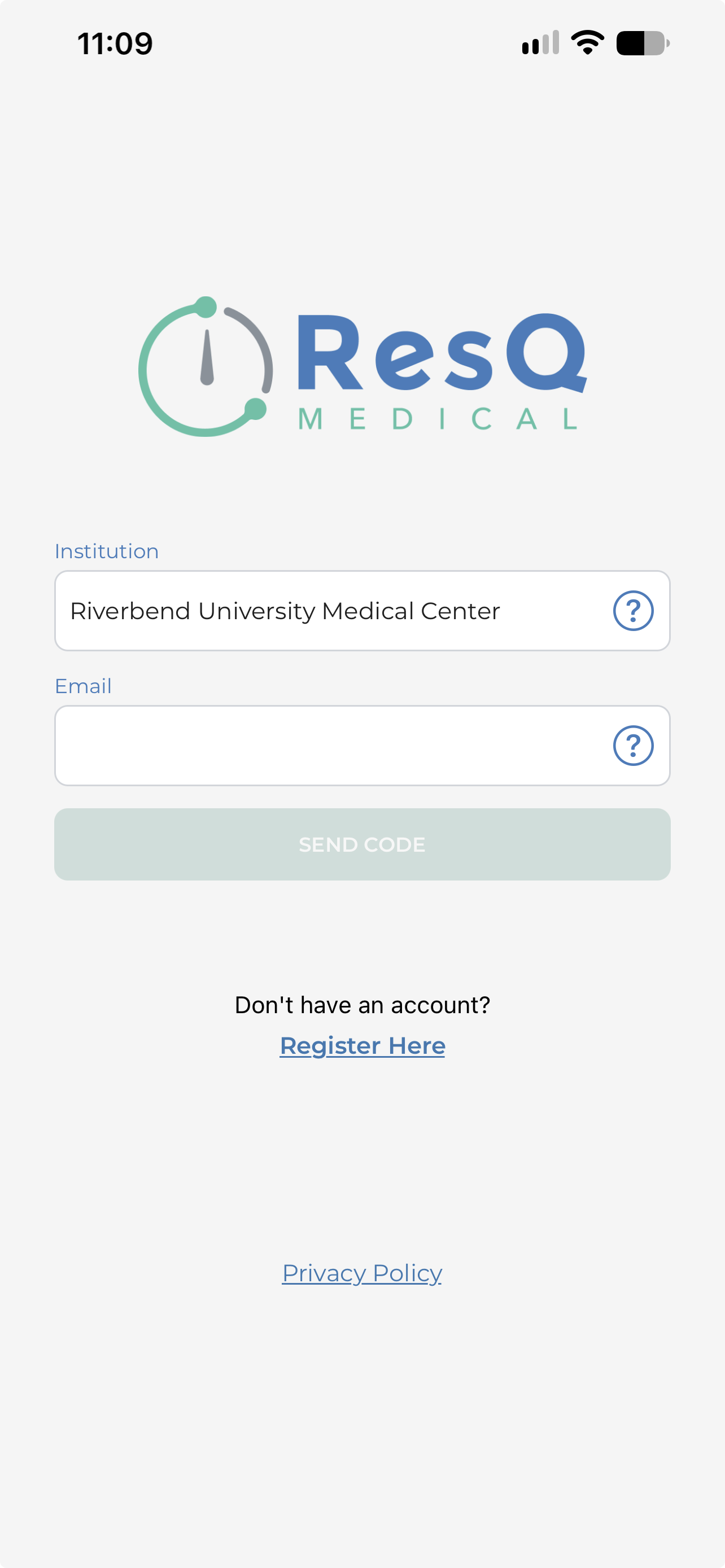
Choose your institution
Tap Institution and pick yours from the list. The list comes from ResQ, so if your institution is missing, your program has not been set up yet — contact us and we will sort it.
Enter your email address
Use the address your program registered you with. If you are not sure which one that is, it is usually your institutional address rather than a personal one.
Tap SEND CODE
The button stays greyed out until both fields are filled. ResQ then tells you that if an account exists for that address, a code is on its way.
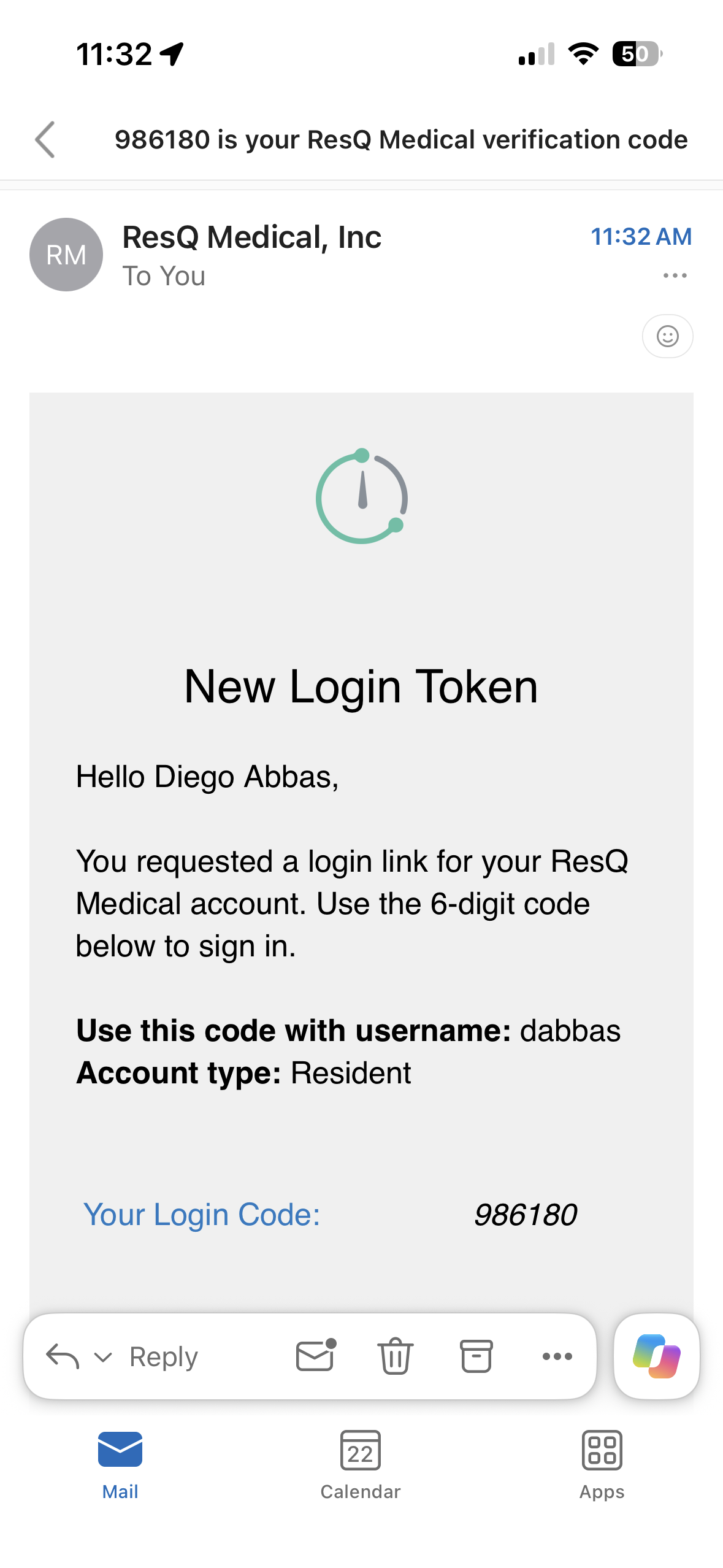
Open the email from ResQ Medical
The subject line is your code followed by is your ResQ Medical verification code. Inside, the message confirms which username and account type the code belongs to, then gives you the six digits.
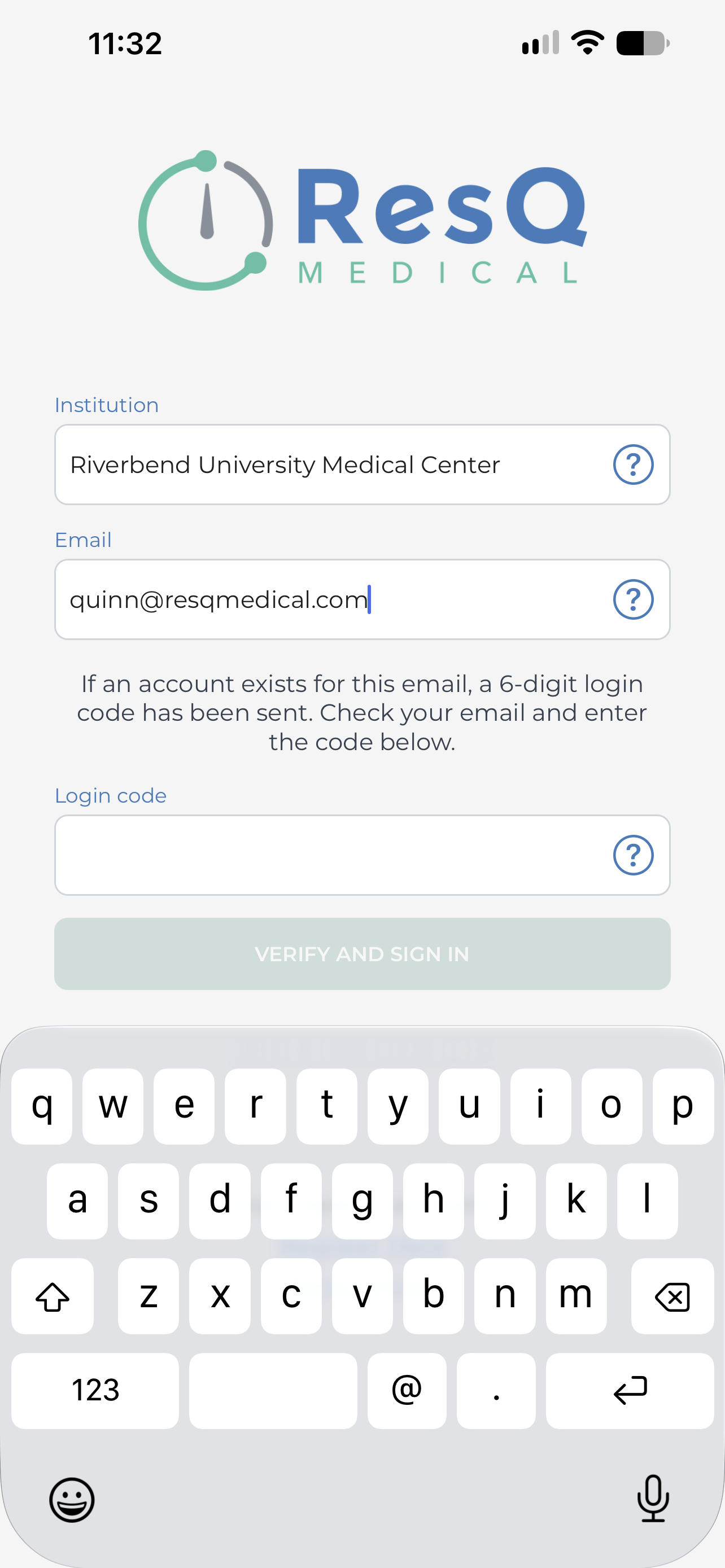
Type the code and tap VERIFY AND SIGN IN
Back in the app, the Login code field is waiting below your email address. Enter the six digits and you are in.
No code in your inbox?
Check the address matches your ResQ account
For your privacy, ResQ says the same thing whether or not an account exists — “if an account exists for this email, a six‑digit login code has been sent”. So no code usually means the address does not match the one your program registered. Try your institutional address, then contact us.
Check spam, then try again
The message comes from ResQ Medical, Inc. If it is not in your inbox after a minute, look in spam or junk, then tap SEND CODE again for a fresh one. Codes are single use, so always work from the most recent email.
Signed in? Set your phone up properly
ResQ can only record your hours if your phone lets it see your location in the background. It is worth five minutes before your first shift.
Signing in as a Program or GME Administrator
Administrators sign in on the web rather than in the app. Go to your institution’s ResQ address — your Institution ID followed by .resqmedical.com — then choose Email me a sign-in code instead and we will send you a six-digit code. If you already have a password, that still works.
Still cannot get in?
Tell us your institution and the email address you are trying, and we will check your account.
Contact ResQ support