
Missing or incorrect hours
ResQ records automatically, but no system is perfect. If a shift is missing, cut short, or logged at the wrong WorkZone™, you can correct it yourself from the WorkTime™ screen in about a minute.
Add a shift ResQ missed entirely
Use this when a shift is absent from your log altogether — usually because location was switched off, the phone died, or the app was asleep.
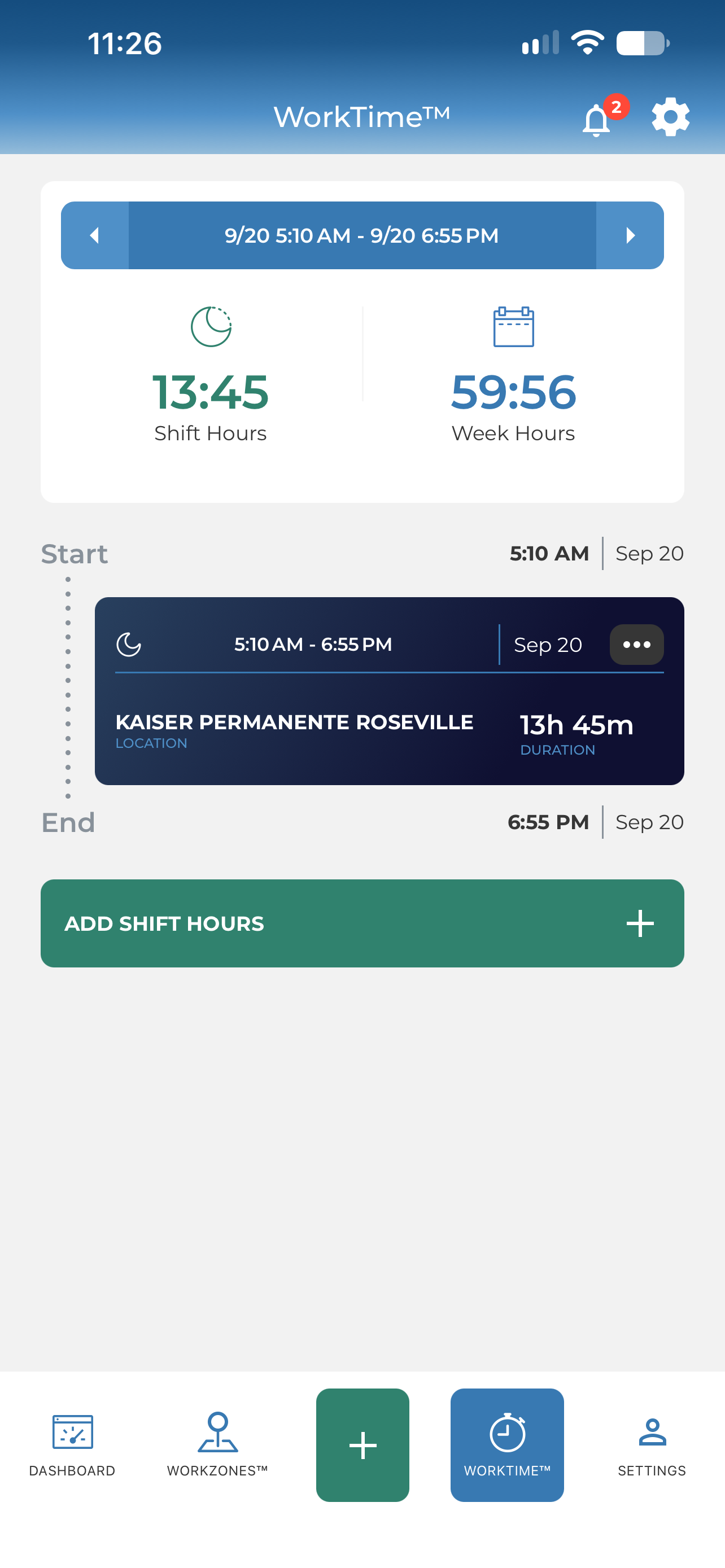
Open WorkTime™
Fourth along the bottom bar, between the green + and Settings. Your shifts appear as a timeline, with shift and week totals above.
Tap ADD SHIFT HOURS
The green button below the timeline. The green + in the middle of the bottom bar does the same thing.
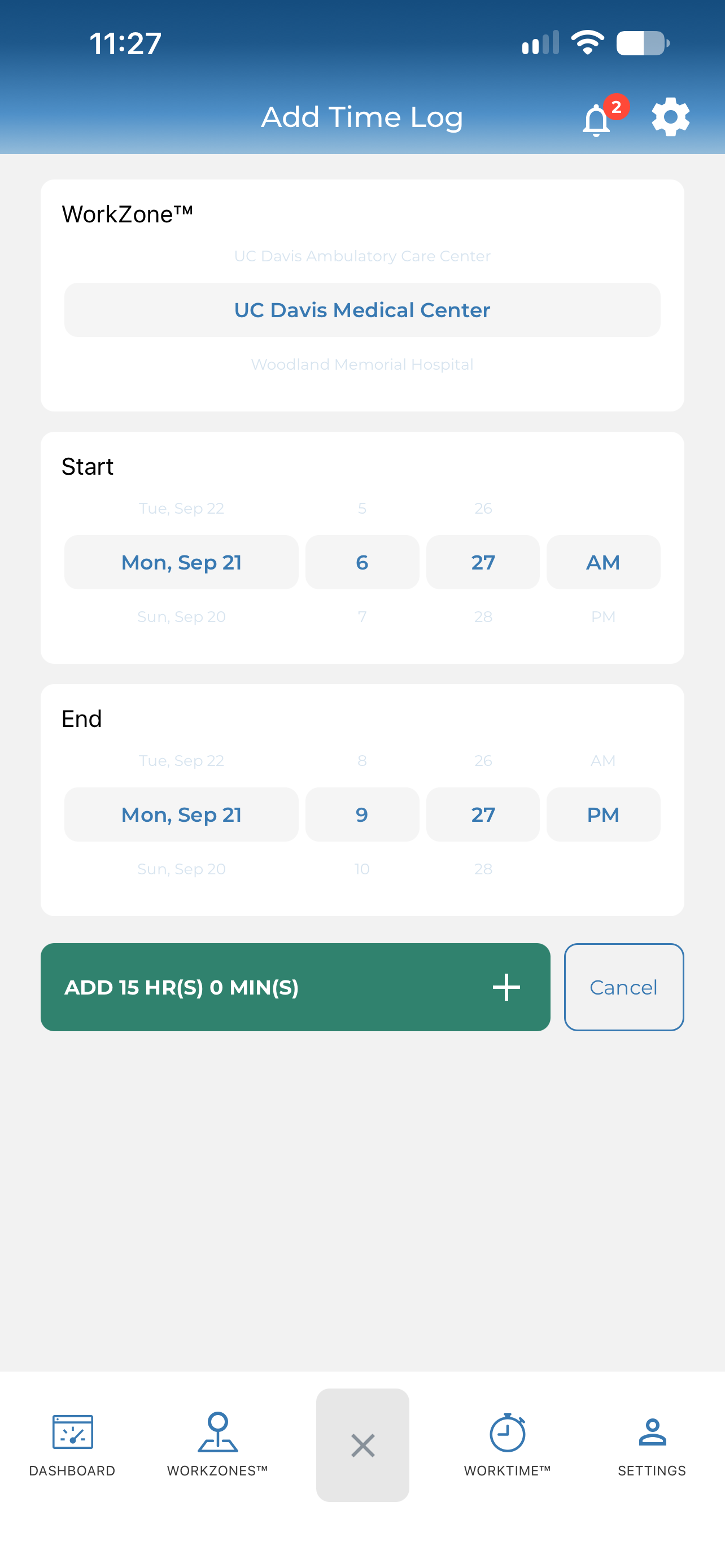
Choose the WorkZone™
Scroll to the site where you actually worked. Only WorkZones™ your program has set up will appear.
Set the times and add it
Scroll each wheel to the right date and time. The green button totals it as you go — it will read something like ADD 15 HR(S) 0 MIN(S). Tap it and the shift joins your log.
Correct or remove a shift
Use this when ResQ caught the shift but clipped the times, or logged the wrong WorkZone™.
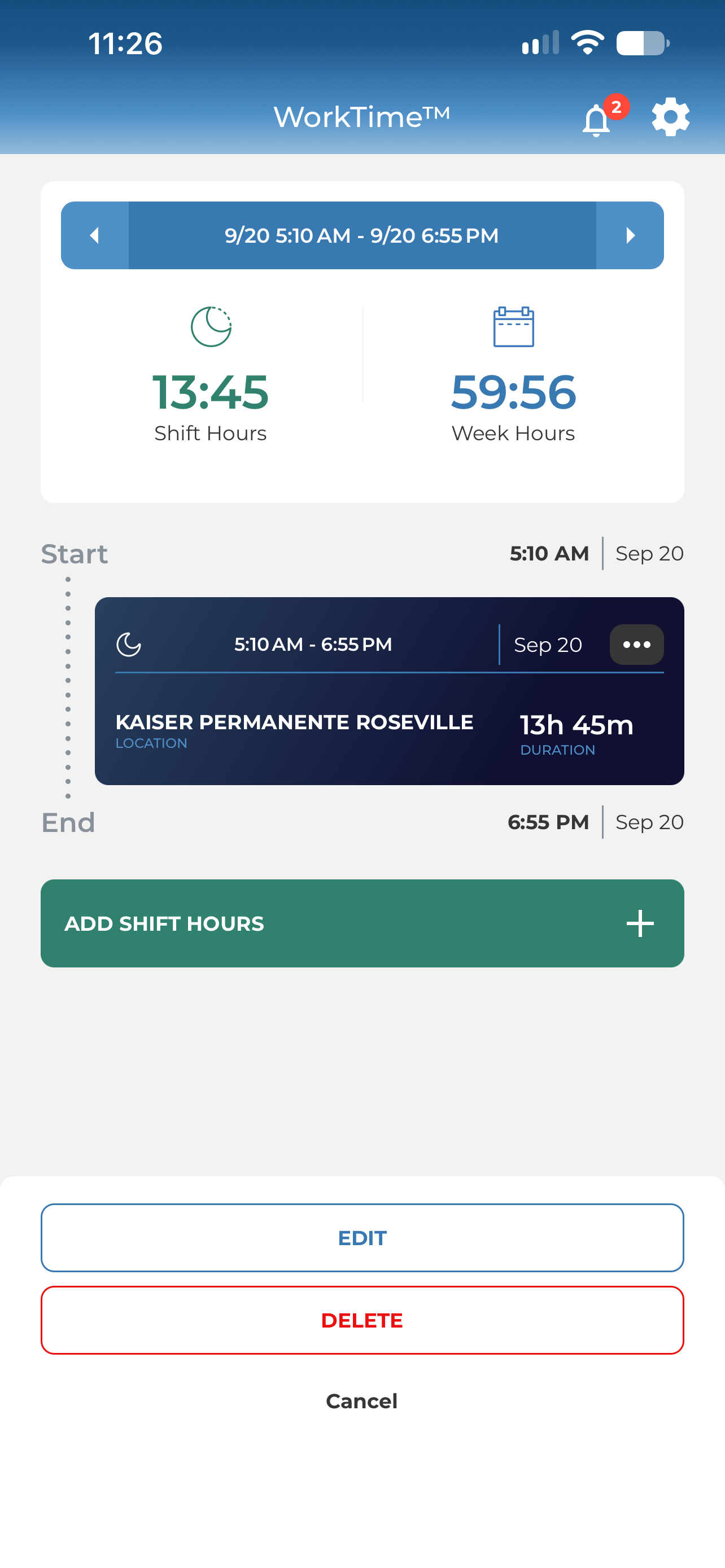
Find the shift on WorkTime™
Use the arrows at the top to move between days if you need an earlier one.
Tap the ••• on the shift card
It sits in the top right of the dark card. A panel slides up offering Edit and Delete.
Choose Edit
Delete removes the shift permanently, so use it only for one that should never have been recorded at all.
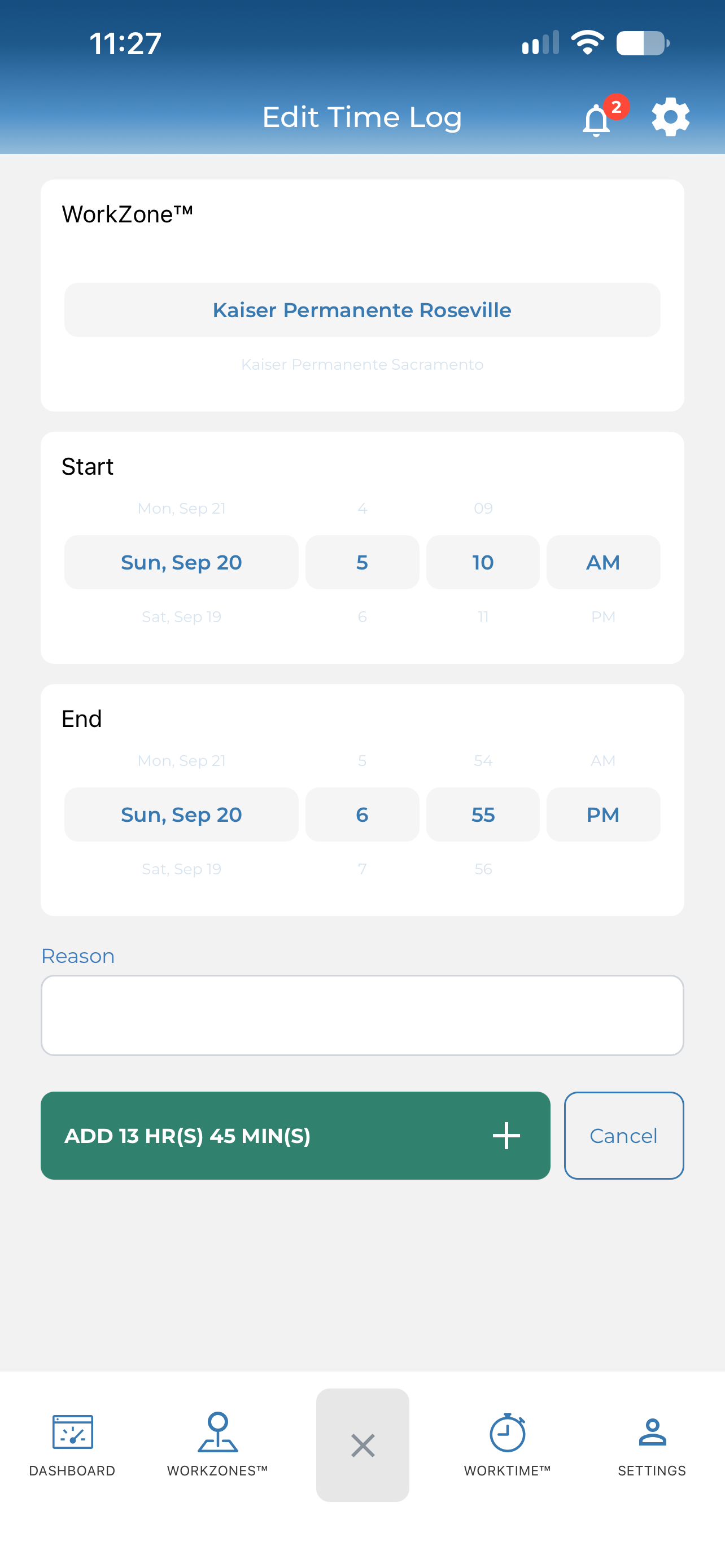
Change what is wrong
Adjust the WorkZone™, the start, the end, or all three. The green button re-totals as you go.
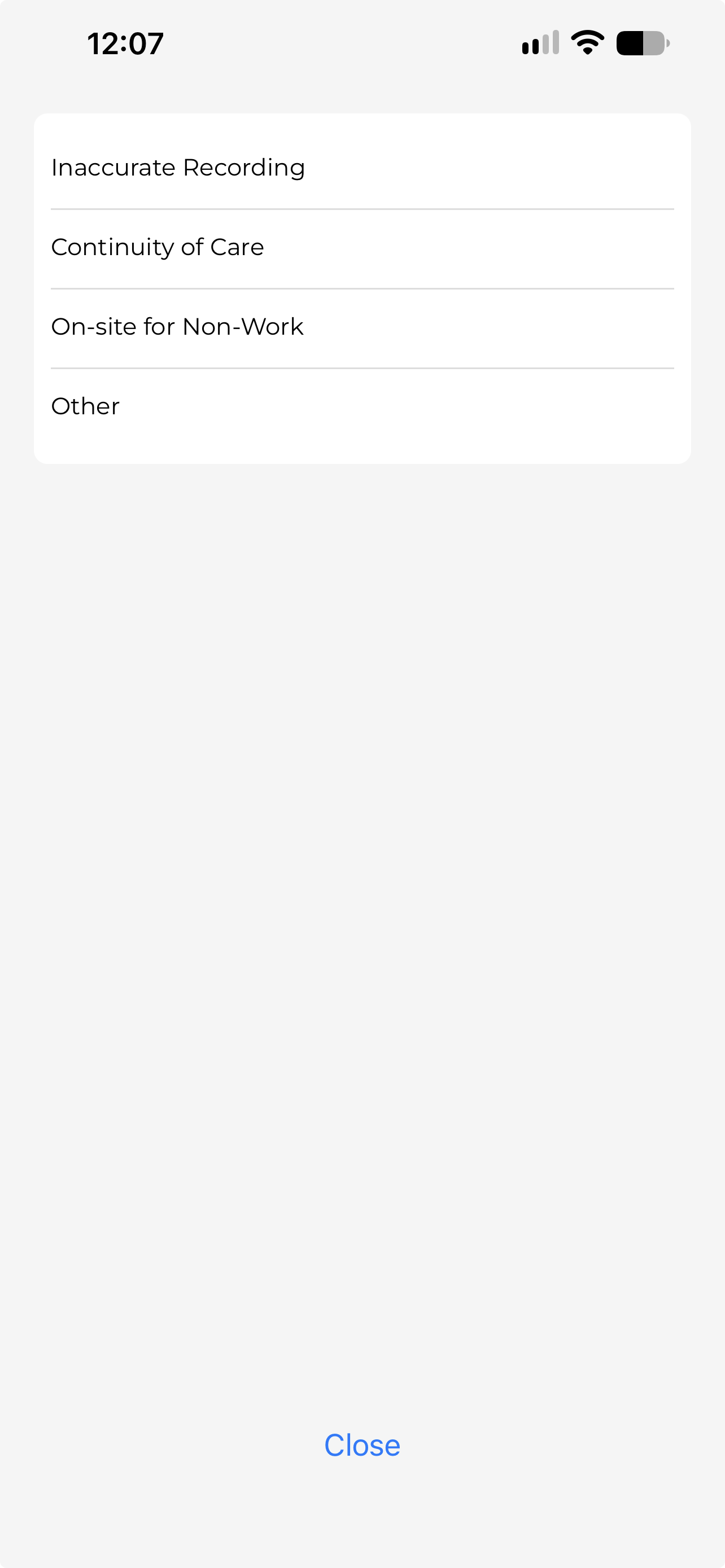
Give a reason, then save
Tap Reason and pick one of four: Inaccurate Recording, Continuity of Care, On‑site for Non‑Work, or Other. Choosing Other adds a Please explain box that must also be filled in — until it is, the green button stays greyed out and tapping it does nothing. Then save.
Or do it on a computer
Everything above also works in your institution’s ResQ portal in a web browser — correcting a shift, removing one, or adding a shift ResQ missed entirely. Useful when you have several to put right at once, or your phone is not to hand.
Sign in to your portal
Your institution ID followed by .resqmedical.com — for example lomalinda.resqmedical.com. Choose Email me a sign-in code, enter the email address your program registered you with, then type in the six-digit code we send you.
Tick Edit
Your shifts are listed under Recorded Shifts. Tick the Edit box at the top right of that panel. A green Add Shift button appears beside it, your entry and exit times become clickable, and a red bin appears in the Delete column of every row.
Correct a time
Click the Entry or Exit time on the shift. It turns into a box with a calendar below it — pick the date, set the hour, minutes and AM/PM from the three dropdowns, then click Apply. Use the date range above the list, or the Last 30 Days box, to find an older shift.
Or add a shift ResQ missed
Click Add Shift. A box asks for the Workzone, the Entry date and time, the Exit date and time, and a Reason — then click Save. The red bin in the Delete column removes a shift permanently, so use it only for one that should never have been recorded.
The 90-day rule above applies here too — once a shift is archived it can no longer be edited in the app or the portal.
Most missed shifts trace back to one thing
If you are correcting hours often, it is usually your phone’s location settings rather than the app. Five minutes there saves a lot of editing later.
Still cannot get it to save?
Tell us the date and the WorkZone™ and we will sort it out on our side.
Contact ResQ support