
Set up your phone so ResQ records correctly
ResQ records your work hours automatically as you arrive at and leave a WorkZone™. For that to happen, your phone has to let ResQ see its location in the background — even when the app is closed. Checking these settings takes about two minutes.
Two settings that matter no matter what you carry
Keep Wi‑Fi turned on
Leave Wi‑Fi on even when you are not connected to a network. Your phone uses nearby routers to sharpen its sense of where it is. With Wi‑Fi switched off, location can be off by more than a mile — far too coarse to tell whether you are inside a WorkZone™ or across the street from one.
Let ResQ use cellular data
ResQ needs a connection to record your entries and exits as they happen. Turn Data Saver off and make sure mobile data is switched on for ResQ. On some Android phones the same setting appears as “Limit mobile data usage” — that one should be off.
Five settings on iPhone
Open Settings, scroll down and tap ResQ.
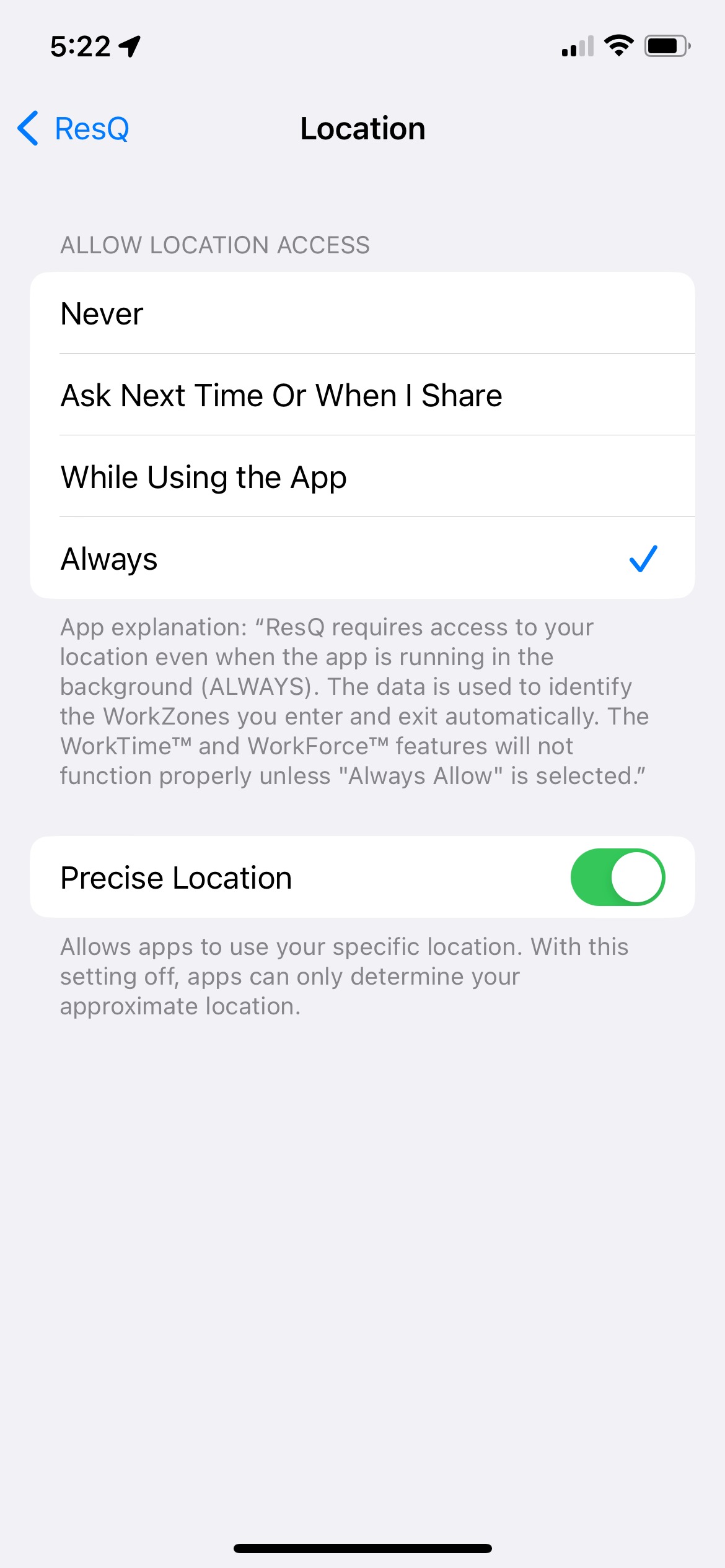
Set Location to “Always”
Settings → ResQ → Location. Any other option stops ResQ recording once you leave the app. “While Using the App” is the single most common reason hours go missing.
Turn on Precise Location
Same screen, near the bottom. Without it iOS hands ResQ only a rough area, which is not sharp enough to place you inside a WorkZone™.
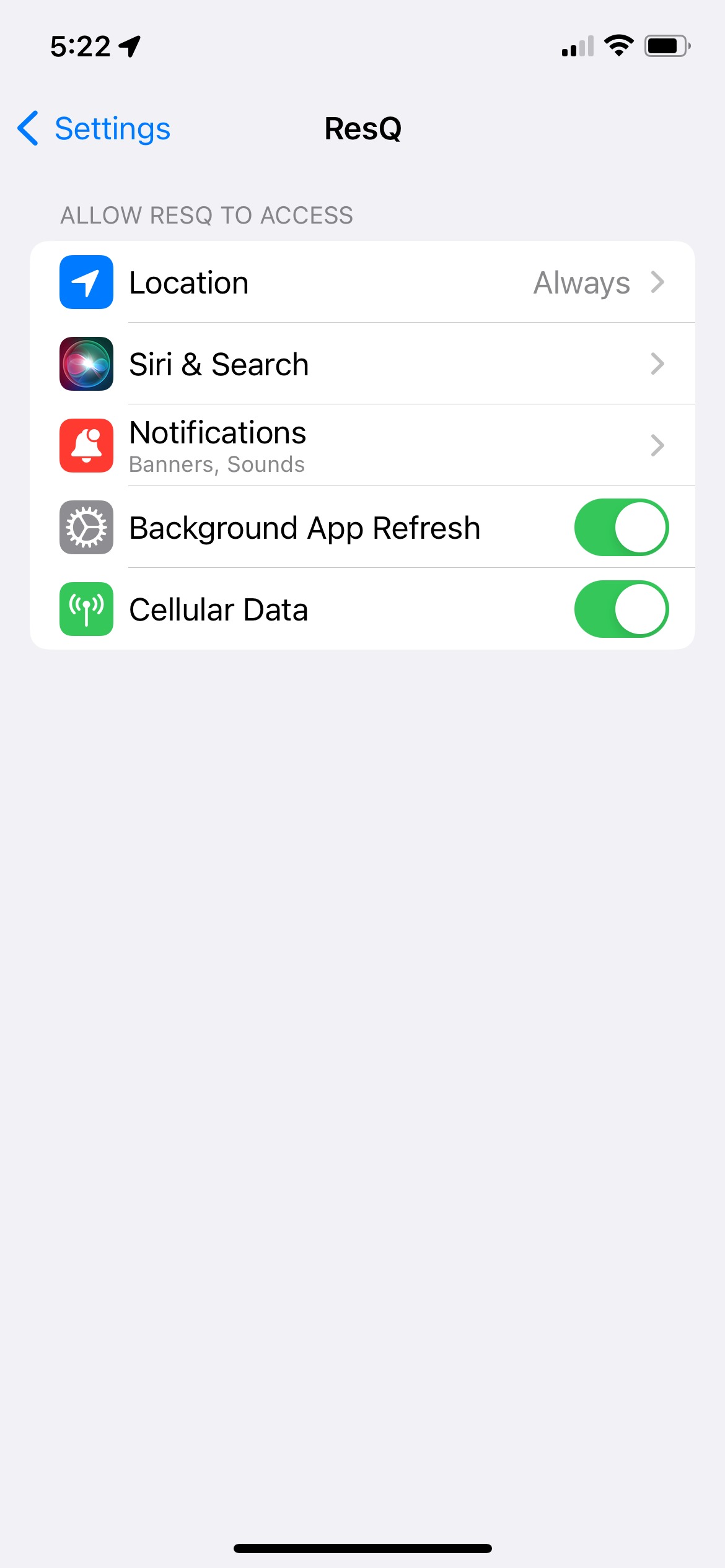
Turn on Background App Refresh
Settings → ResQ. This is what lets ResQ notice you have arrived or left while the app is closed or your phone is in your pocket.
Leave Cellular Data on
Same screen. Without it ResQ cannot record an entry or exit until you next find Wi‑Fi.
Turn Low Power Mode off
Settings → Battery. Low Power Mode stops apps updating their location in the background, so your hours arrive late or not at all.
Six settings on Android
Open Settings → Apps → ResQ Medical. Wording varies a little between manufacturers.
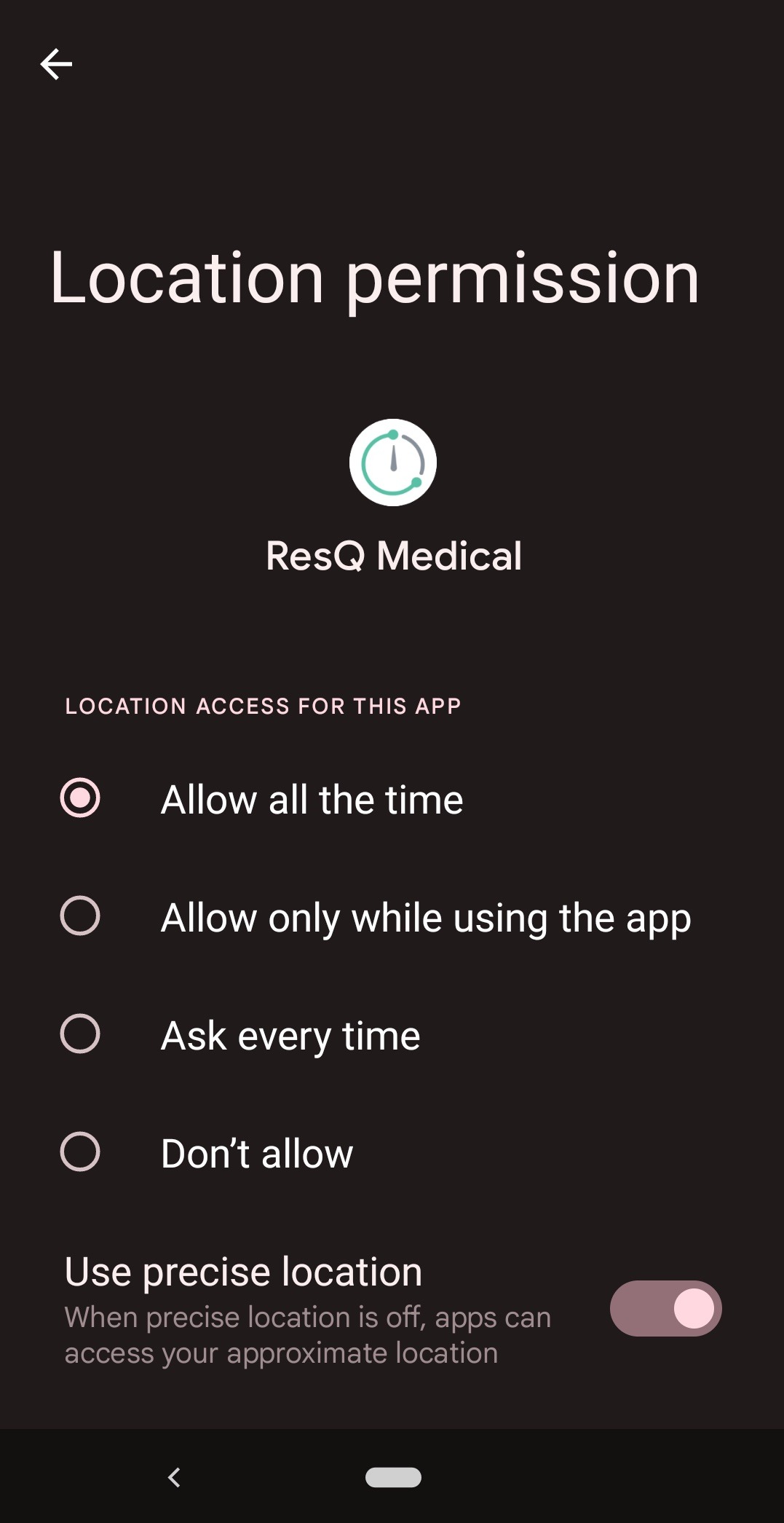
Set location to “Allow all the time”
Permissions → Location. “Allow only while using the app” and “Ask every time” both stop ResQ recording in the background.
Turn on “Use precise location”
Same screen, at the bottom. Approximate location is not sharp enough to tell whether you are inside a WorkZone™.
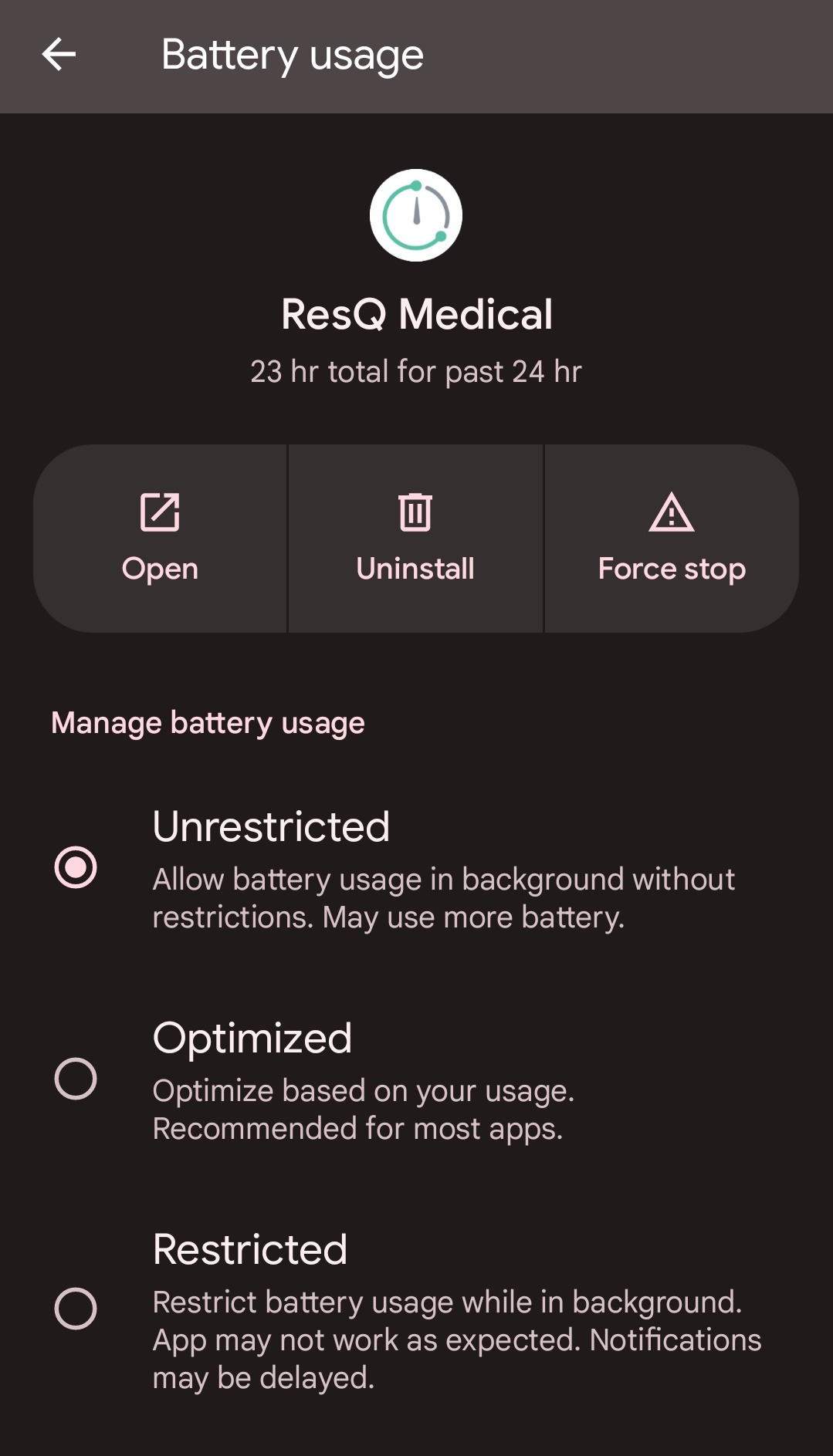
Set battery usage to “Unrestricted”
Battery. Both “Optimized” and “Restricted” give Android permission to pause ResQ in the background, which is exactly when it needs to be awake.
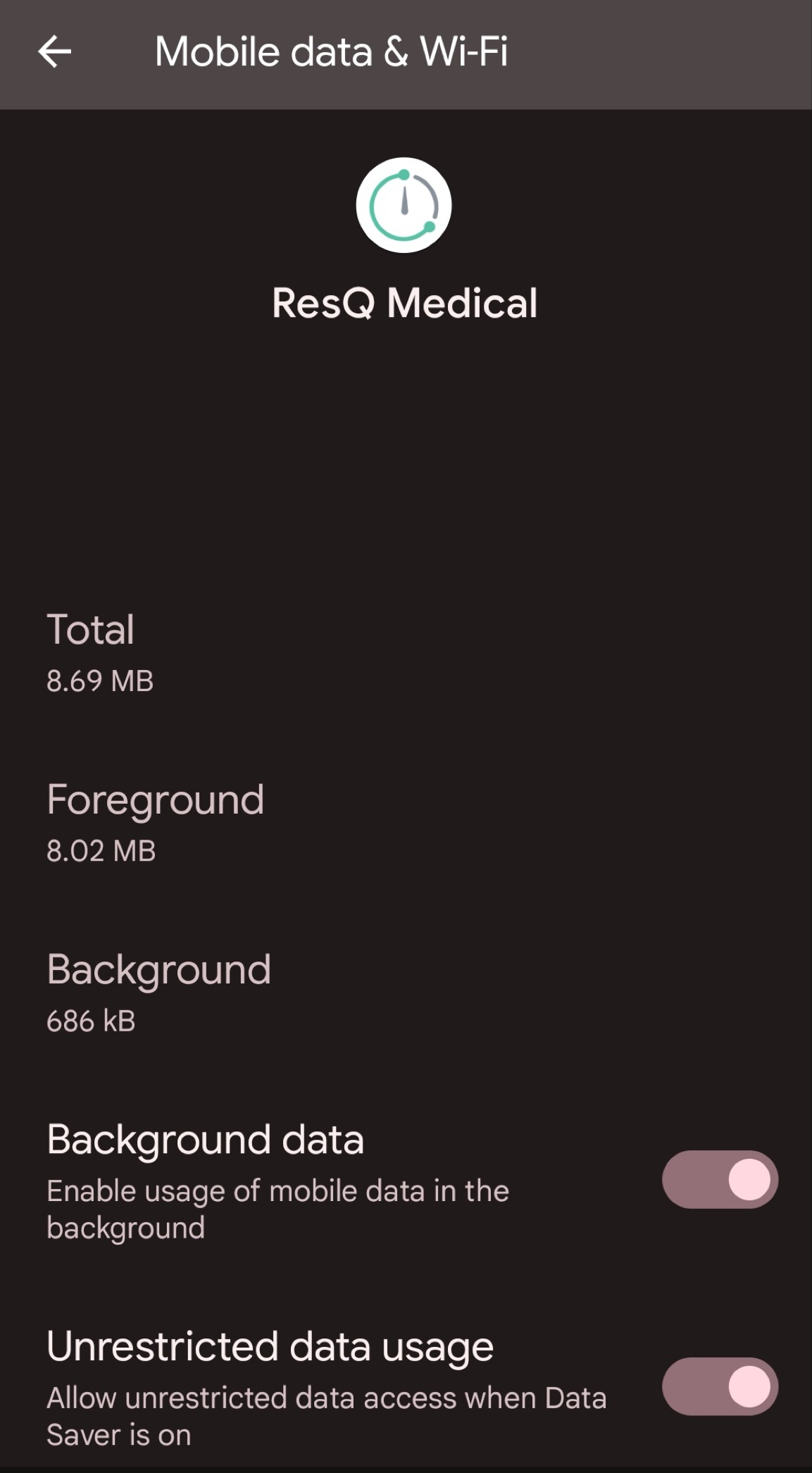
Allow background data
Mobile data & Wi‑Fi. Switch on Background data and Unrestricted data usage. On some phones these read “Allow background data usage” and “Allow app while Data saver on”.
Turn off “Remove permissions and free up space”
Under ResQ Medical → Permissions. Left on, Android can quietly take back ResQ’s location access after a stretch without opening the app.
Turn off “Pause app activity if unused”
Same screen. This setting puts ResQ to sleep, and a sleeping app records nothing.
What ResQ cannot do
If your phone is switched off or the battery is dead, ResQ has no way to see you arrive or leave, and those hours will not record on their own. You can add them yourself afterwards — from the app, or from your institution’s ResQ portal in a web browser.
Checked everything and hours are still missing?
Tell us what you are seeing and we will take a look at your account.
Contact ResQ support